Record a scroll
Turn a single scroll through a chat, web page, note, or feed into one long image.
Long Screenshots, One Tap
Scroll once. Keep the whole page.
Turn a scroll in any iPhone app into one clean long screenshot.
$2.99 one-time purchaseNo subscription or in-app purchases.
Tap Record in LongShot and start the system screen recording.
Open the app you want to capture and scroll through the content. Stop recording and return to LongShot to stitch it automatically.
Open your long screenshot and tap Share to send or save it.
Turn a single scroll through a chat, web page, note, or feed into one long image.
Pick screenshots you already took. LongShot orders them automatically, and you can drag them to reorder.
Adjust a join pixel by pixel until the rows line up.
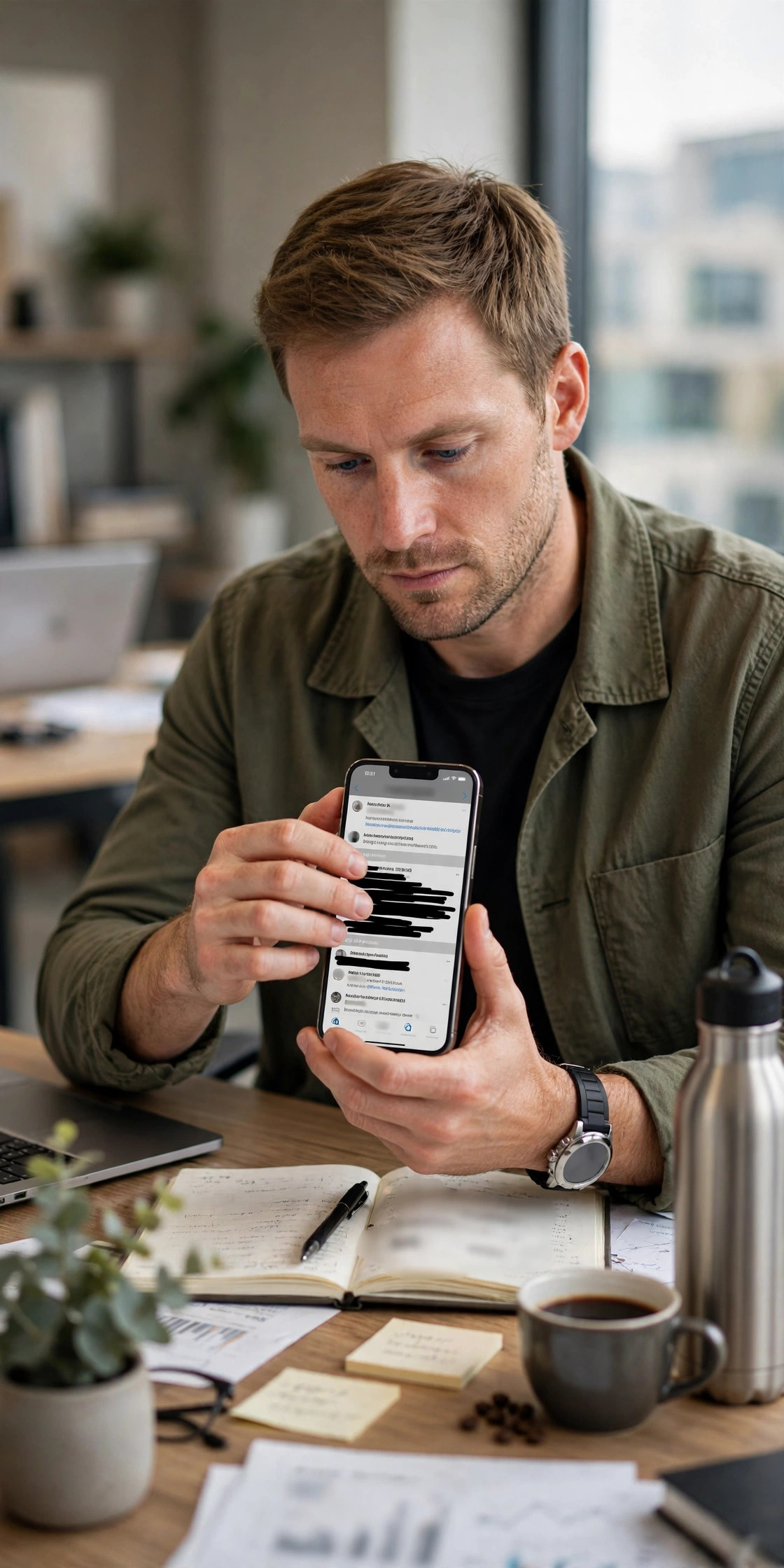
Hide avatars, names, phone numbers, and email addresses, or draw a box to cover a specific area.
Place it at the top or bottom, or tile it across the image.
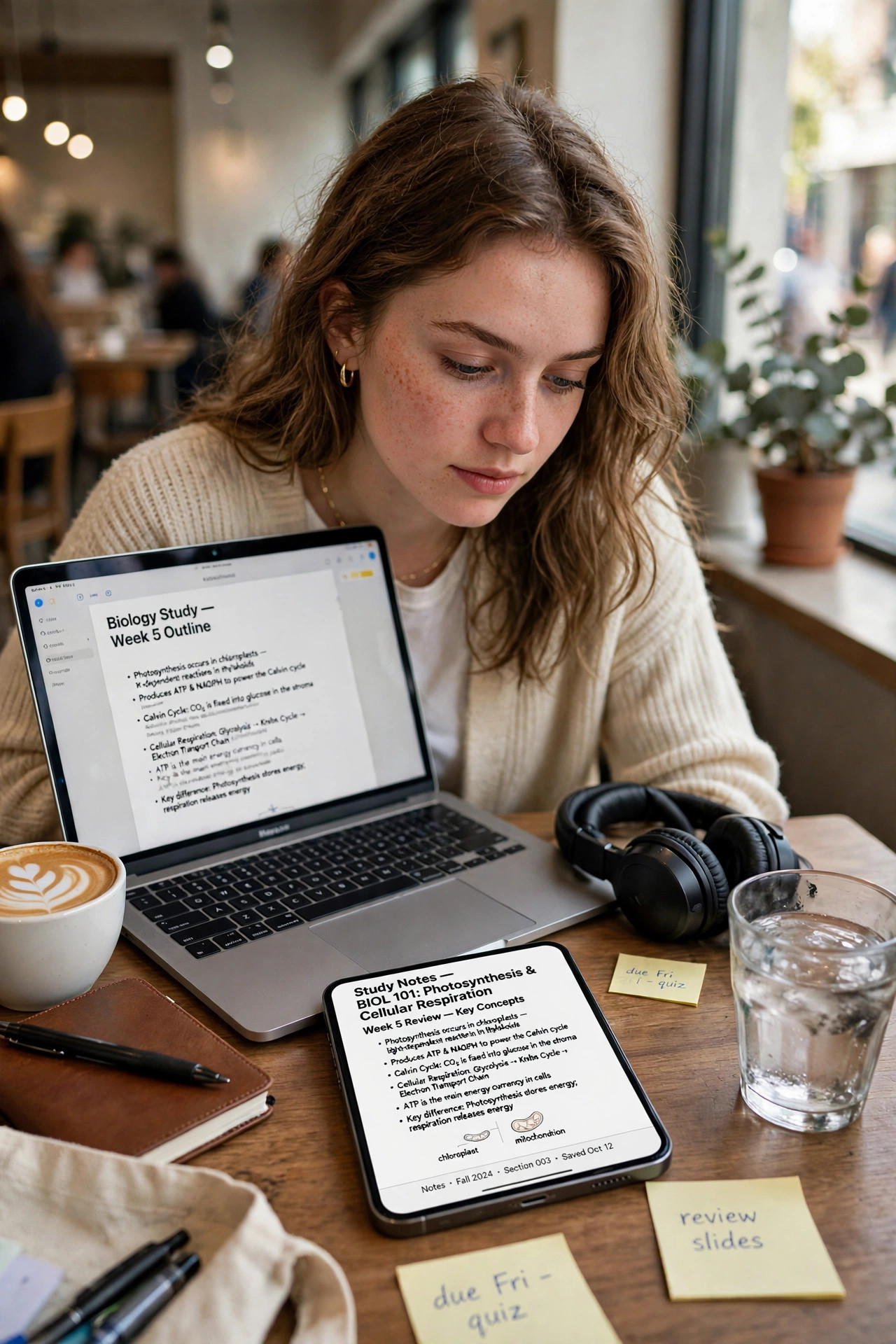
Export recognized text as Word, Markdown, plain text, or a searchable PDF.
Translate recognized text with Apple Translation.
Enable Obsidian auto-save to write exports to a folder you choose.
Private by design. Stitching, text recognition, and redaction run on your iPhone. LongShot collects no data and uploads nothing.
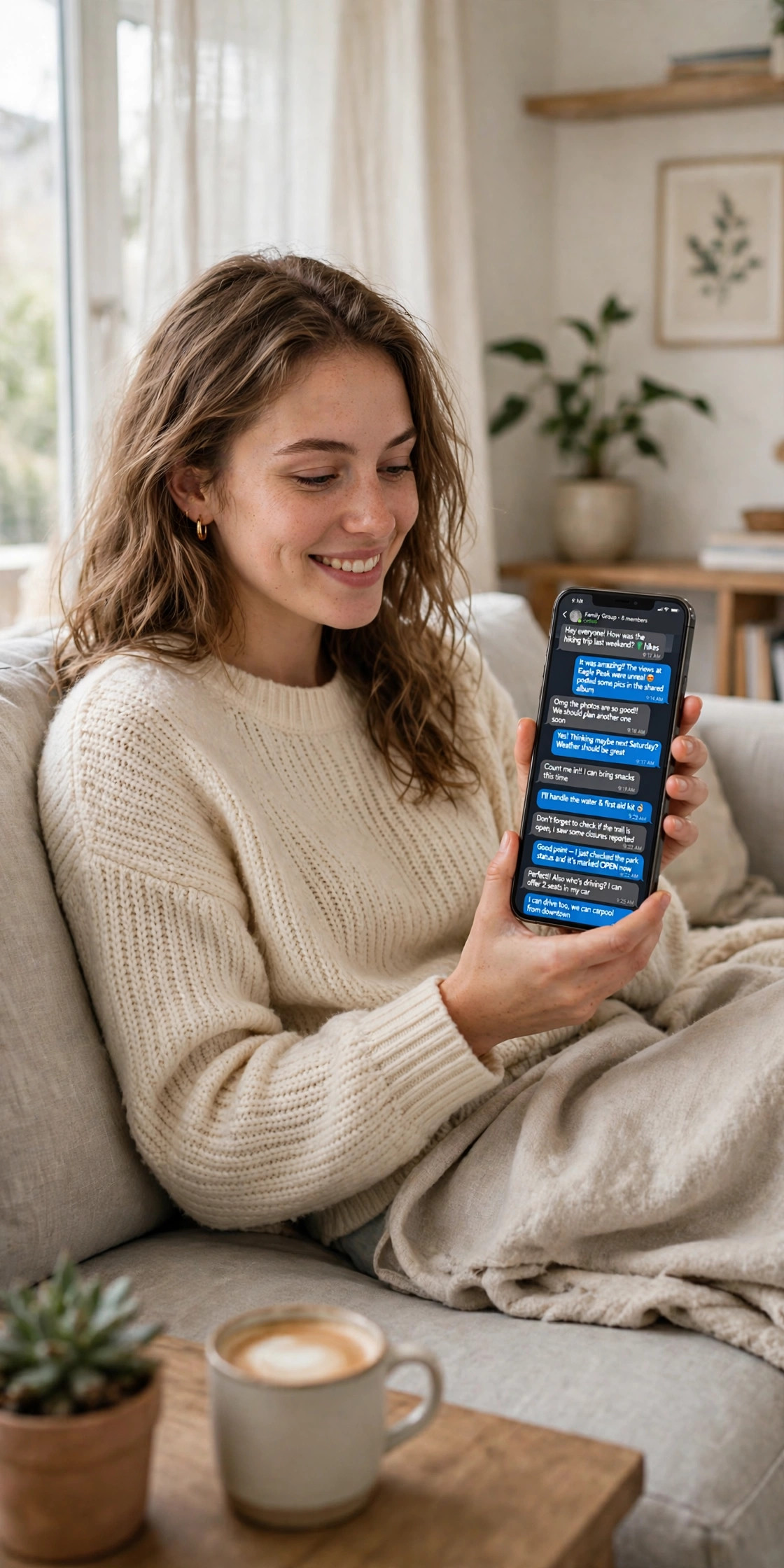
Tap the big Record button, start the system screen recording, scroll through the page, then come back to LongShot. It stitches the recording into one long image automatically.
Yes. Pick your screenshots and LongShot orders them automatically. Drag to reorder, or delete and add shots before stitching.
Yes. Open a seam and nudge it by pixels until the rows line up. Source frames are kept for 7 days so you can re-adjust a join later.
Use Redact. LongShot can find avatars, names, phone numbers and email addresses for you, or you can draw a box yourself. Choose Background, Black or Mosaic. Redacted content is removed from the image, previews and recognized text.
Yes. Open a capture, tap Text to see the recognized text, then Share / Export to save it as Word, Markdown, plain text or a searchable PDF.
Yes, with Apple Translation. Apple may download language packs to your device the first time you translate.
No. Stitching, text recognition and redaction all run on your iPhone. Nothing leaves your device unless you tap Export or Share.
Settings → Obsidian → enable auto-save and pick a folder. Exports are written there only when you enable it.
Read the privacy policy.